
Optivis CMSCargo management system
Run every freight job from quote to paid invoice.
Optivis CMS is a cargo management system for freight forwarders. Quotes, air and sea shipments, pre-alerts, customer tracking, charges and invoices live in one place, so the whole team works from the same job.
Early access opens soon: a 14-day free trial of Pro, no card needed

Spreadsheets and e-mail can’t tell you where a job is.
Plenty of forwarding teams run on a job sheet, a shared inbox and a lot of follow-up. It works until the team is busy, someone is away, or a customer asks for an update.
- The job list is a spreadsheet
- Someone keeps it up to date by hand, and everyone else works from whichever copy they opened last.
- The paperwork is in inboxes
- Quotes, pre-alerts, bills of lading and invoices are spread across e-mail threads, so finding one means searching a colleague's mailbox.
- The rest is chasing
- Has the pre-alert gone? Did the cargo land? Have we invoiced it? You find out by asking around.
Optivis CMS keeps the job itself: its stage, documents, charges and history, in one record the whole team can see.
01
Every job, one lifecycle
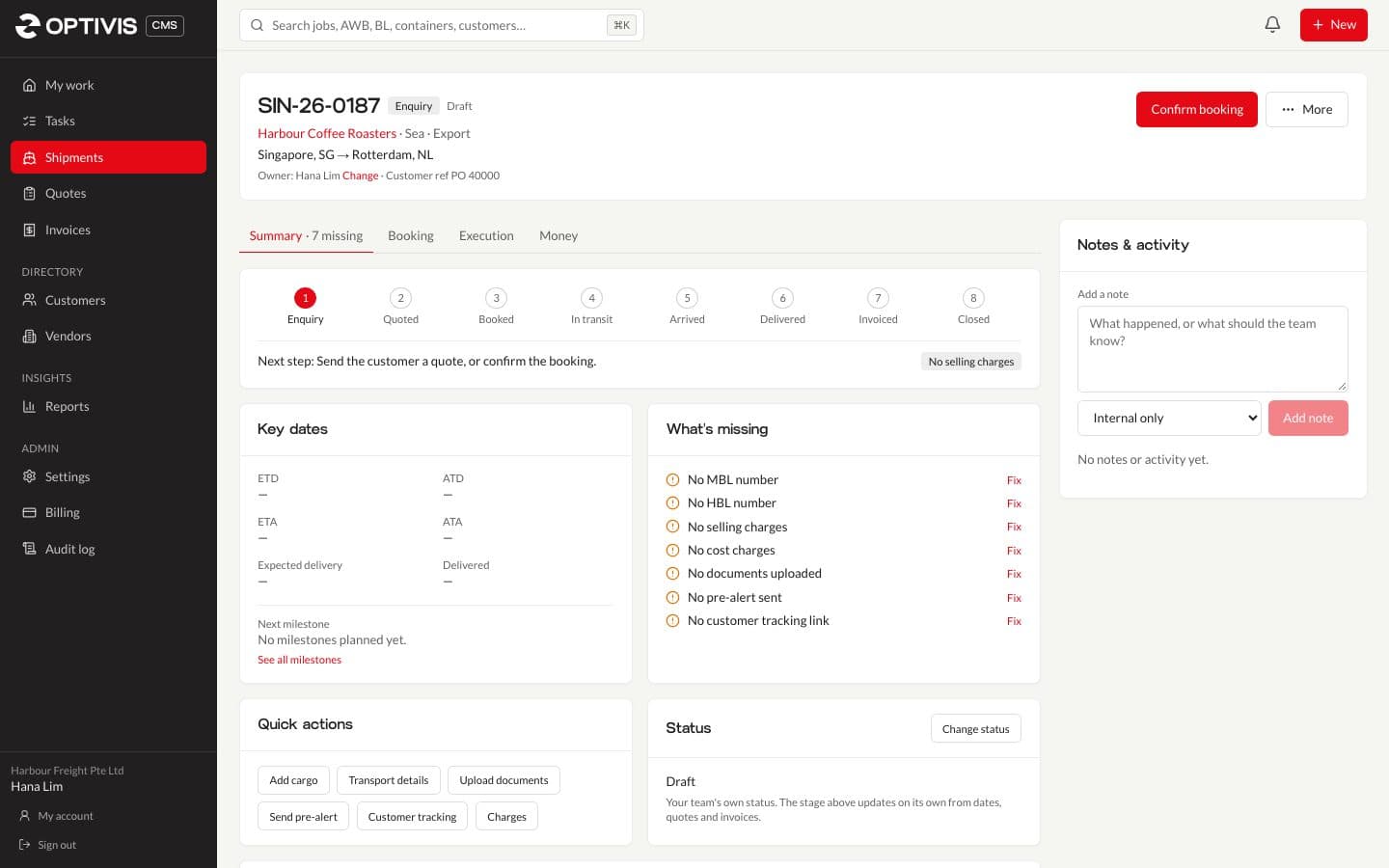
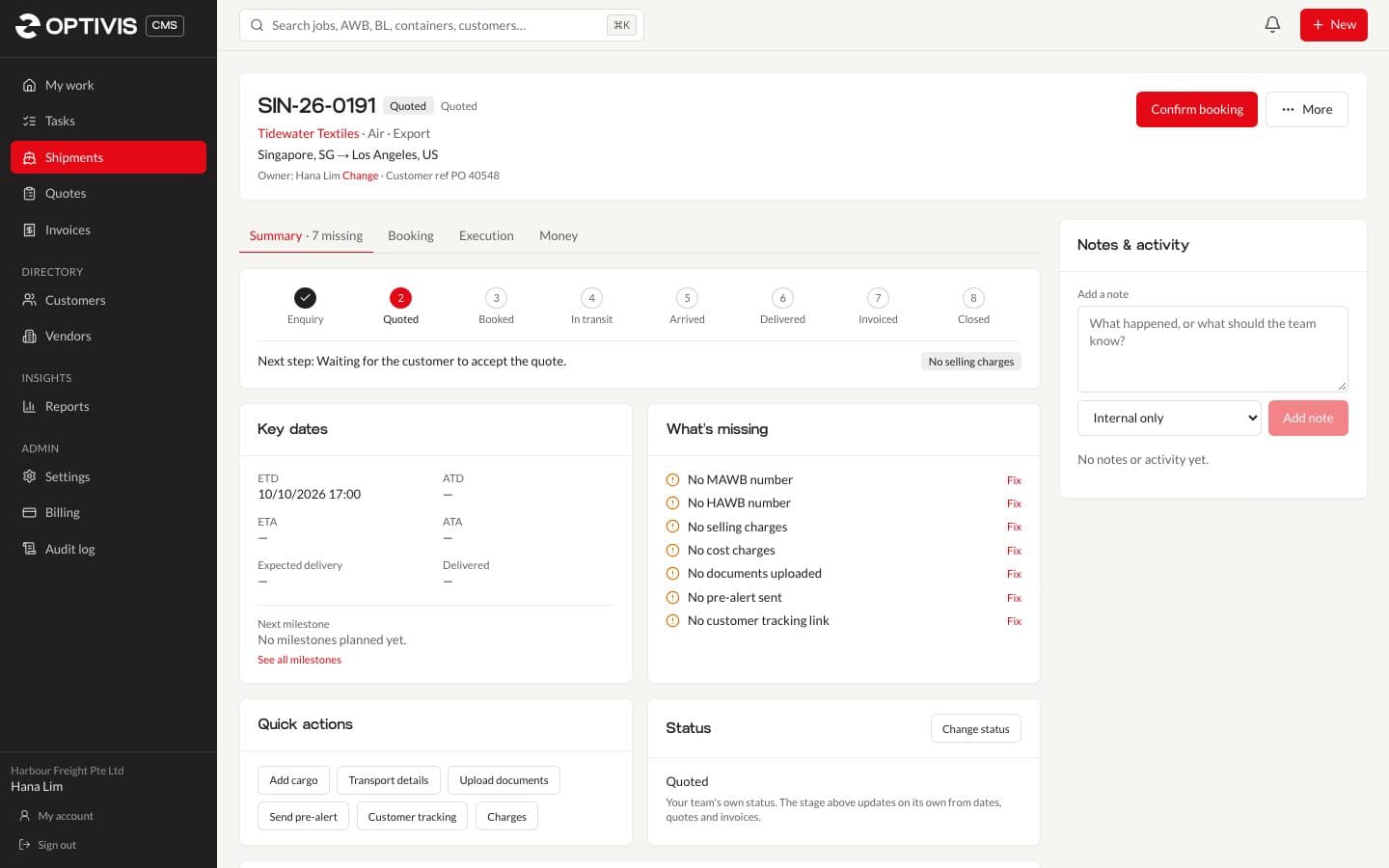
Optivis CMS works out each shipment's stage from what your team records (the quote, the departure and arrival dates, the invoice and the payment), so nobody updates a status by hand and everyone sees the same picture.
Stage 1 of 8
Enquiry
A customer asks for a price, or you start a shipment from scratch.
- Capture the route, cargo and dates once
- Everything after reuses them: the quote, the booking, the paperwork
Stage 2 of 8
Quoted
You price the job and send the customer a quote, as a PDF by e-mail.
- Quote in any currency, with your own tax rates
- E-mail it with the PDF attached, and see every time it was sent
Stage 3 of 8
Booked
The customer accepts the quote, or you confirm the booking.
- Book carriers and agents for each leg
- Send pre-alerts with documents attached
- Share a tracking link with the customer
Stage 4 of 8
In transit
You record the departure (ATD).
- Track milestones, delays and changed ETAs
- Your customer follows along on their tracking page
Stage 5 of 8
Arrived
You record the arrival (ATA).
- Clear customs and book the delivery
- Give the team tasks with due dates
Stage 6 of 8
Delivered
You record the delivery date.
- Check costs against what you're charging
- See the profit on the job before you invoice
Stage 7 of 8
Invoiced
You invoice the selling charges, and send the invoice to Xero if you use it.
- E-mail the invoice with its PDF
- Overdue invoices show up on My work
Stage 8 of 8
Closed
You record the customer's payment.
- The job's full history stays in the audit log
- Export everything, any time, in one download
Early access opens soon: a 14-day free trial of Pro, no card needed
02
Everything the job needs, on the job
Quotes, bookings, pre-alerts, tracking, charges and invoices aren't separate tools to keep in step. They're parts of the same shipment.
Quotes sent from the job, in any currency
Price the job with your own charges and tax rates, then e-mail the quote with its PDF attached, straight from Optivis CMS. Every send is recorded, and when the customer accepts, the quoted price becomes the shipment’s selling charges.
- Any currency, converted at the exchange rates you set
- Tax rates filled in for your country
- Send the quote to Xero if you use it

Every shipment shows its stage and what's missing
Each job opens on a summary: where it is in the eight stages, its key dates, and what’s still missing, such as an MBL number, cost charges or a pre-alert, each with a link to fix it.
- Air and sea, import and export
- Planned and actual dates for every milestone
- Tasks with due dates, on a shipment or on their own

Pre-alerts and tracking links, sent from the job
Send a pre-alert to your agent or carrier with the job’s documents attached, and keep a history of every send. Give your customer a tracking link, with a PIN if you want one, that shows only the milestones and documents you choose.
- Documents with versions, attached from the job
- Overdue milestones flagged on My work
- Internal notes for the team on every job

Profit on every job, then the invoice
Enter costs and selling charges in any currency and see the profit on each job before you bill it. Once the cargo is delivered, invoice the selling charges, e-mail the invoice as a PDF, and send it to your own Xero organisation if you use Xero.
- Delivered-but-not-invoiced jobs flagged on My work
- Jobs with no costs flagged before profit goes unchecked
- Overdue invoices listed for follow-up

Also in every workspace
- Team and control
A roles editor, teams, tasks and an audit log of every change.
- All features
Everything Optivis CMS does, area by area.
03
Switching is the easy part
You can be working in Optivis CMS the day you sign up: see it with sample data, bring in your customers and vendors, and invite the team.
Pick your workspace address
Your team signs in at your own address, such as harbourfreight.optivis.co. Your country fills in your currency, time zone and standard tax rates.
Load sample data
A few sample customers, vendors and shipments at different stages, so you can see the whole lifecycle straight away. They're all marked Sample and come out again in one click.
Import customers and vendors from CSV
Export them from your spreadsheet or old system and upload the file. Only the company name is required; common columns such as tax ID, currency, payment terms, contact and address are recognised, and you see a preview before anything is imported.
Invite your team
Invite colleagues by e-mail and give each one a role: operations, finance, sales, read-only or administrator, or roles of your own from the roles editor.
04
Your data stays yours
Each workspace is separated in the database, hosted in Singapore, and yours to export whenever you like.
- Hosted in Singapore
- Optivis CMS and its database run on servers in Singapore, with nightly encrypted off-site backups.
- Separated in the database
- PostgreSQL row-level security keeps each workspace's records apart on every query, not only in the application's code.
- Support only when you allow it
- Optivis support can open your workspace only after one of your administrators grants access: for 24 hours, revocable, and recorded in your audit log.
- Export any time
- Download everything in one zip whenever you like: every table as JSON, the main records as CSV, and all your uploaded files.
05
Simple pricing, with a free plan
Start with a 14-day trial of Pro, no card needed. Afterwards, choose a plan or stay on Lite for free.
Lite
Free
1 user · 5 shipments a month
For trying Optivis CMS out or the occasional shipment.
Standard
$49 /month
3 users · 50 shipments a month
Extra shipments $0.20 each. For a small team moving freight every week.
ProTrial plan
$149 /month
5 users · 300 shipments a month
Extra shipments $0.20 each. For a busy forwarding team.
Prices in US dollars. Every plan includes every feature.
06
Questions forwarders ask first
- What happens when the 14-day trial ends?
- The trial gives you everything in Pro for 14 days, with no card needed. When it ends you keep full access for 7 more days to choose a plan. If you don't choose one, the workspace moves to the free Lite plan (1 user, 5 shipments a month) and nothing is deleted. If more people are active than Lite allows, the workspace becomes read-only until you switch users off or upgrade.
- Can I import my existing customers and vendors?
- Yes. Upload a CSV file with a header row to the customer or vendor list, up to 2,000 rows at a time. Only the company name is required. Common columns (trading name, code, tax ID, currency, payment terms, contact and address) are recognised, a template is available to download, and you see a preview before anything is imported.
- Does Optivis CMS work with Xero?
- Yes, if you want it to. Each workspace connects its own Xero organisation in Settings, then sends quotes and invoices to Xero from their pages. Xero is optional: quotes and invoices work in Optivis CMS on their own, with their own PDFs.
- Is my data kept separate from other companies?
- Yes. Every workspace's records are separated in the database itself with PostgreSQL row-level security, so a query only ever reads the workspace it runs for. Optivis staff can open your workspace only when one of your administrators allows support access, for 24 hours at a time, and each grant appears in your audit log.
- Where is Optivis CMS hosted?
- In Singapore. The application and its database run on servers in Singapore, with nightly encrypted off-site backups.
- Can I leave and take my data with me?
- Yes. An administrator can download the whole workspace at any time: every table as JSON, the main records as CSV, and all uploaded files, in one zip. Cancelling a plan never deletes anything; the workspace moves to Lite. Data is deleted only when an administrator asks for it, 30 days later, and the deletion can be cancelled until then.
- What counts as a shipment?
- Each shipment (job) your team creates counts towards the plan's monthly allowance. Quotes on their own and sample data don't count. Lite and the trial stop at their allowance; on Standard and Pro, shipments beyond it are billed at $0.20 each.
- Does it handle both air and sea freight?
- Yes. Shipments can be air or sea, import or export. Air jobs carry MAWB and HAWB numbers, sea jobs MBL and HBL numbers and containers, and every job moves through the same eight stages from enquiry to closed.
See your next shipment in Optivis CMS
Set up your workspace in a few minutes, load sample data to see every stage, or look around the live demo first.
Early access opens soon: a 14-day free trial of Pro, no card needed