
Optivis CMSFeaturesInvoicing and profit
Know what every job made, and invoice it from the job.
Optivis CMS is a cargo management system (CMS) for freight forwarders. Enter costs and selling charges in any currency on the job, see its profit straight away, then invoice the selling charges and send the invoice to the customer and to Xero.
Early access opens soon: a 14-day free trial of Pro, no card needed
01
Invoicing and profit in Optivis CMS
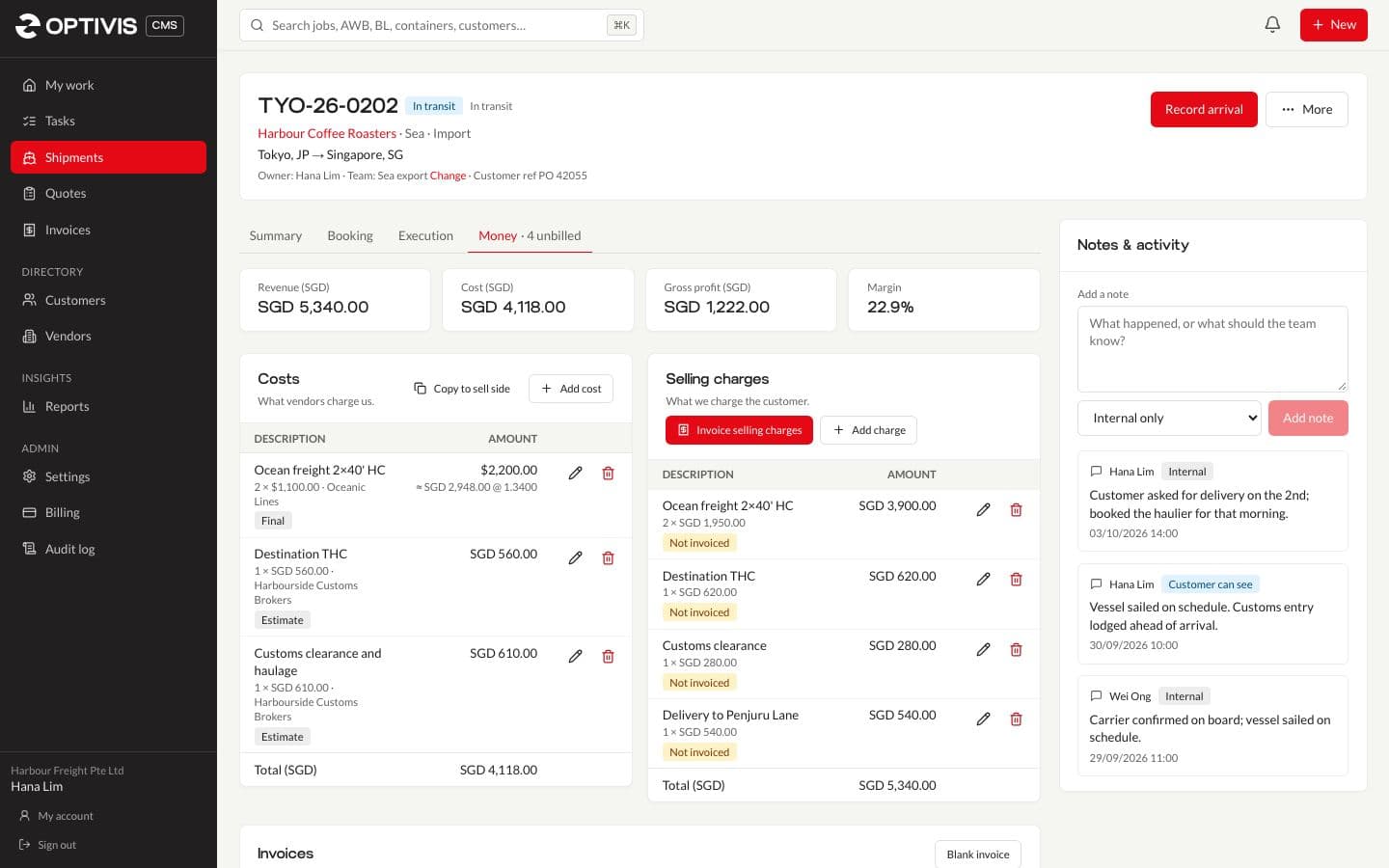
Costs and selling charges, side by side
Each job has two lists: costs (what vendors charge you) and selling charges (what you charge the customer). A charge has a description, category, quantity, unit rate, currency, tax rate and whether the amount is an estimate or final, and a cost is linked to its vendor.
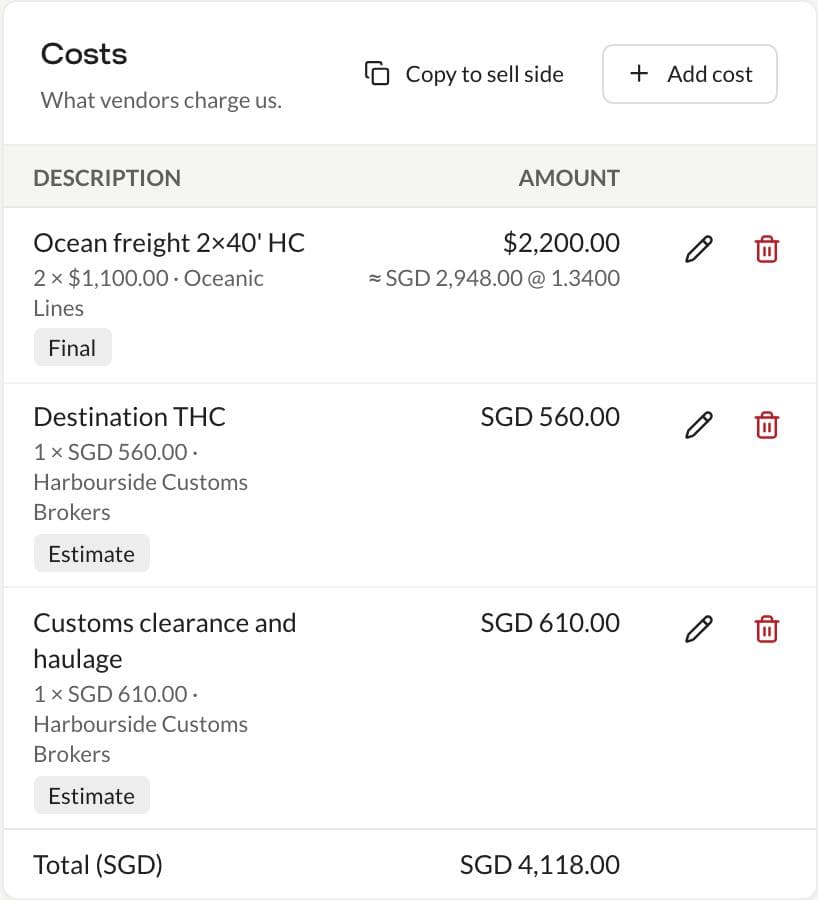
- Charges in another currency are converted to your base currency at your exchange rate
- Copy to sell side creates selling charges from ticked costs at cost plus your markup
- Invoiced charges are locked, so the invoice and the job can't disagree
Profit per job and per customer
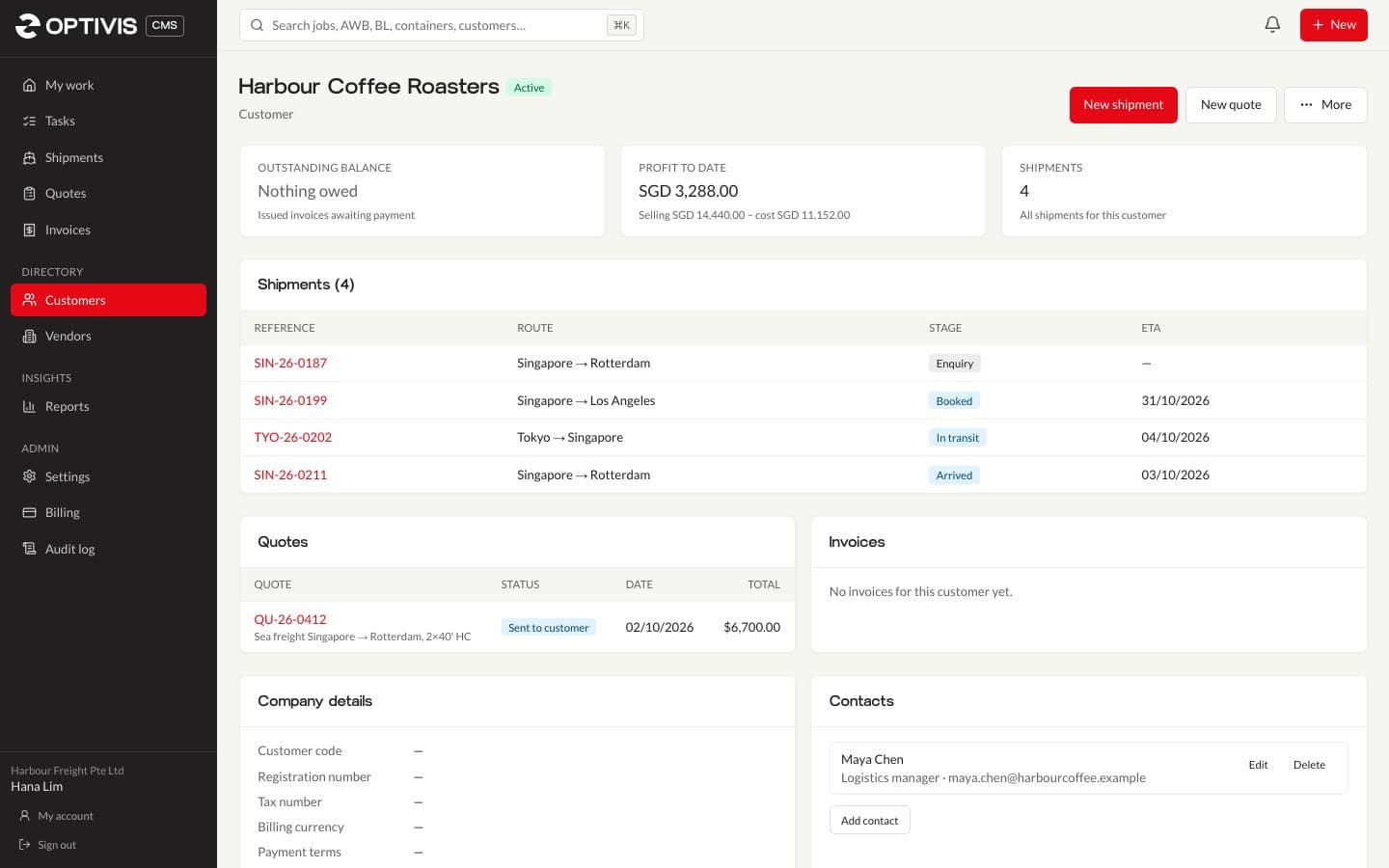
Revenue, cost, gross profit and margin show on every job, in your base currency. Each customer page shows the profit made so far and what they owe, and the shipment profitability report lists every job's figures for a date range, customer or mode.
- Only roles with See profit and margins see profit; costs and selling rates have their own permissions
- Download reports as CSV or Excel
Invoice the job, issue it, get paid
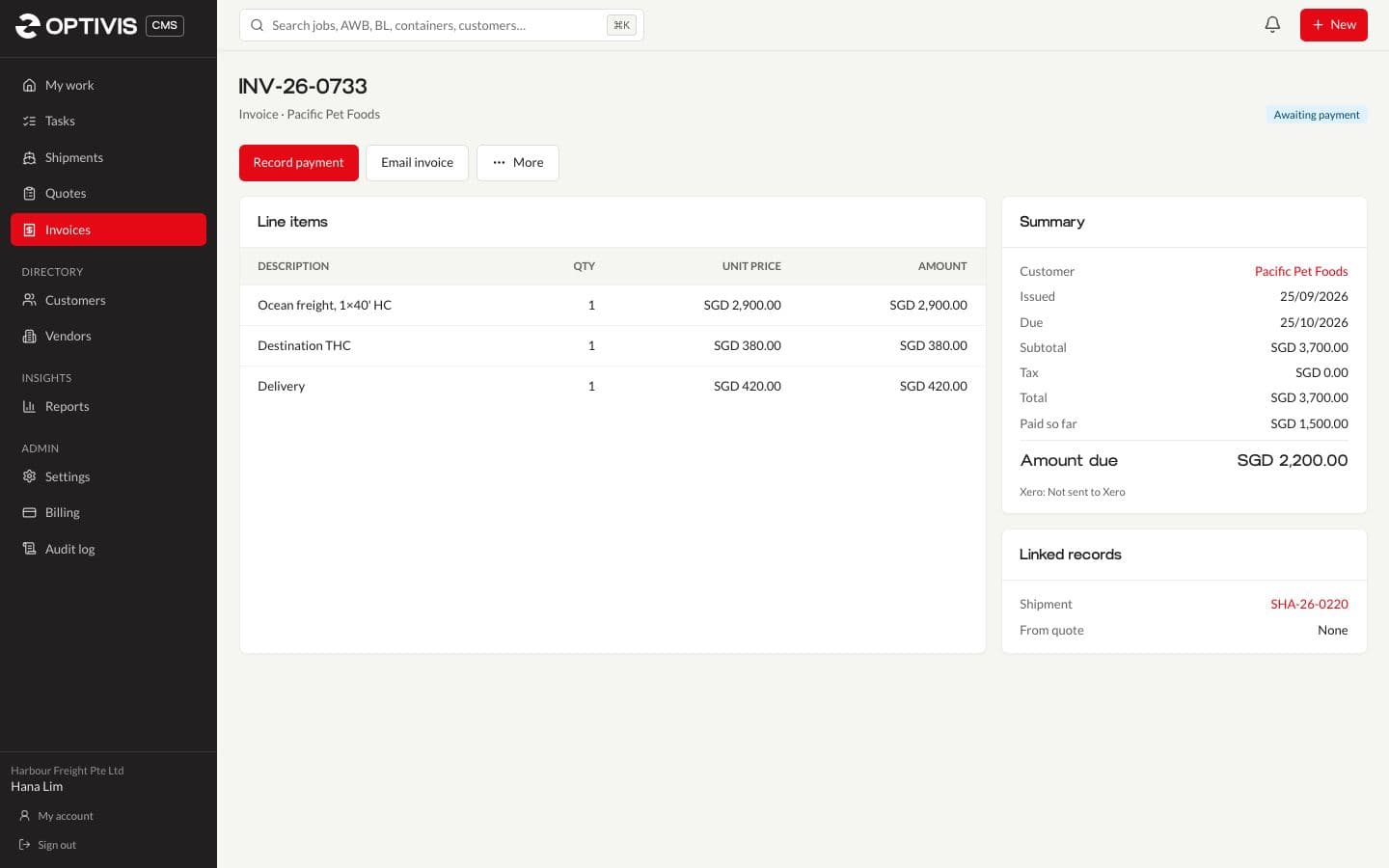
Invoice selling charges creates a draft invoice from the job's unbilled selling charges; untick any you're not billing yet. Approve and issue it (its amounts are locked from then on), e-mail it as a PDF, and record payments as they arrive, including part payments.
- When the invoice is paid, the shipment shows Closed
- Overdue invoices appear on My work
- Invoice numbers follow your workspace's own pattern
Your currencies, exchange rates and tax rates
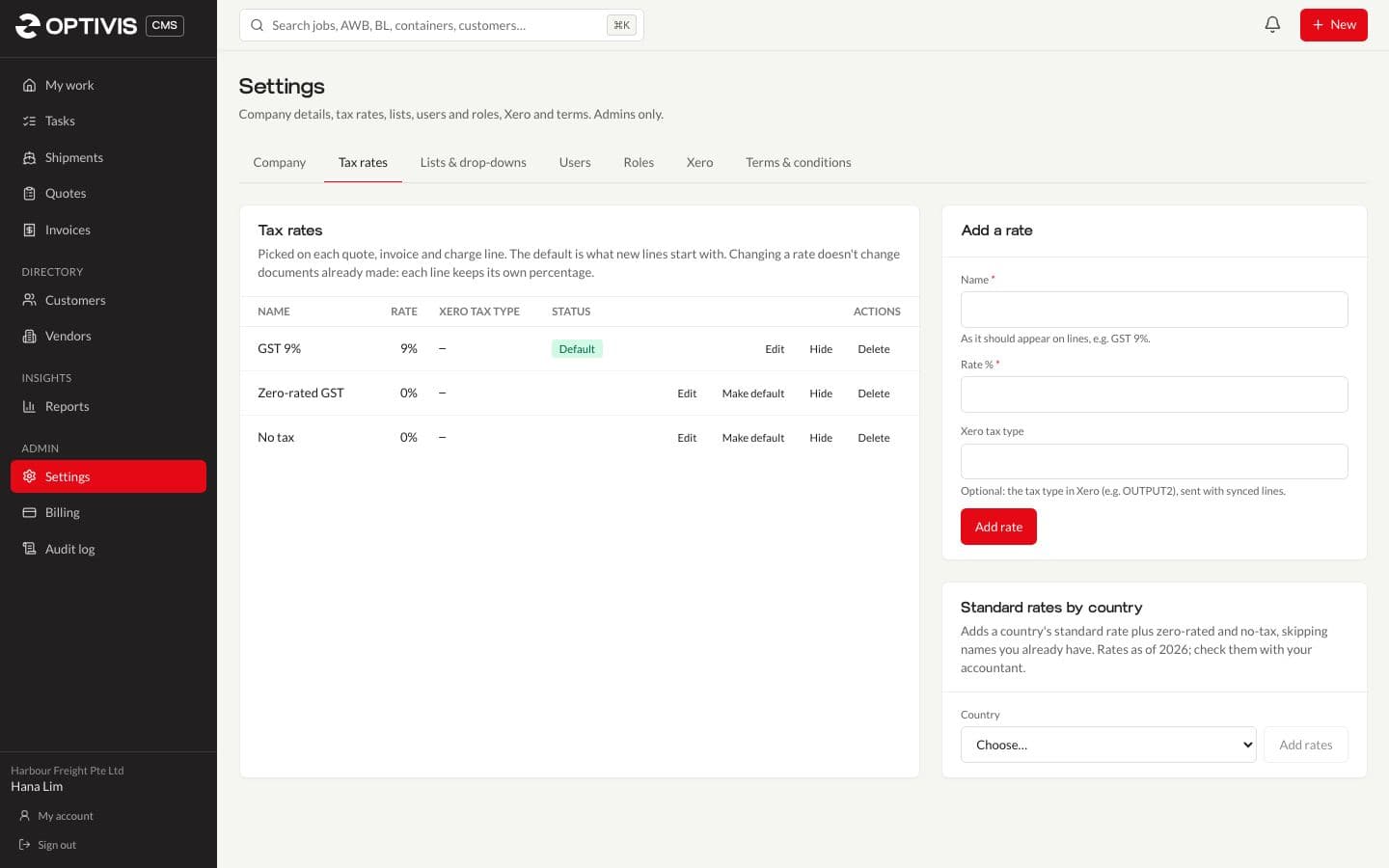
Your base currency, timezone, date format and tax rates are set from your country when you sign up, and you can add the currencies you trade in. Exchange rates are yours to enter, by date, so profit uses the rate you actually work with.
- Tax rates per workspace, with a default rate for new lines
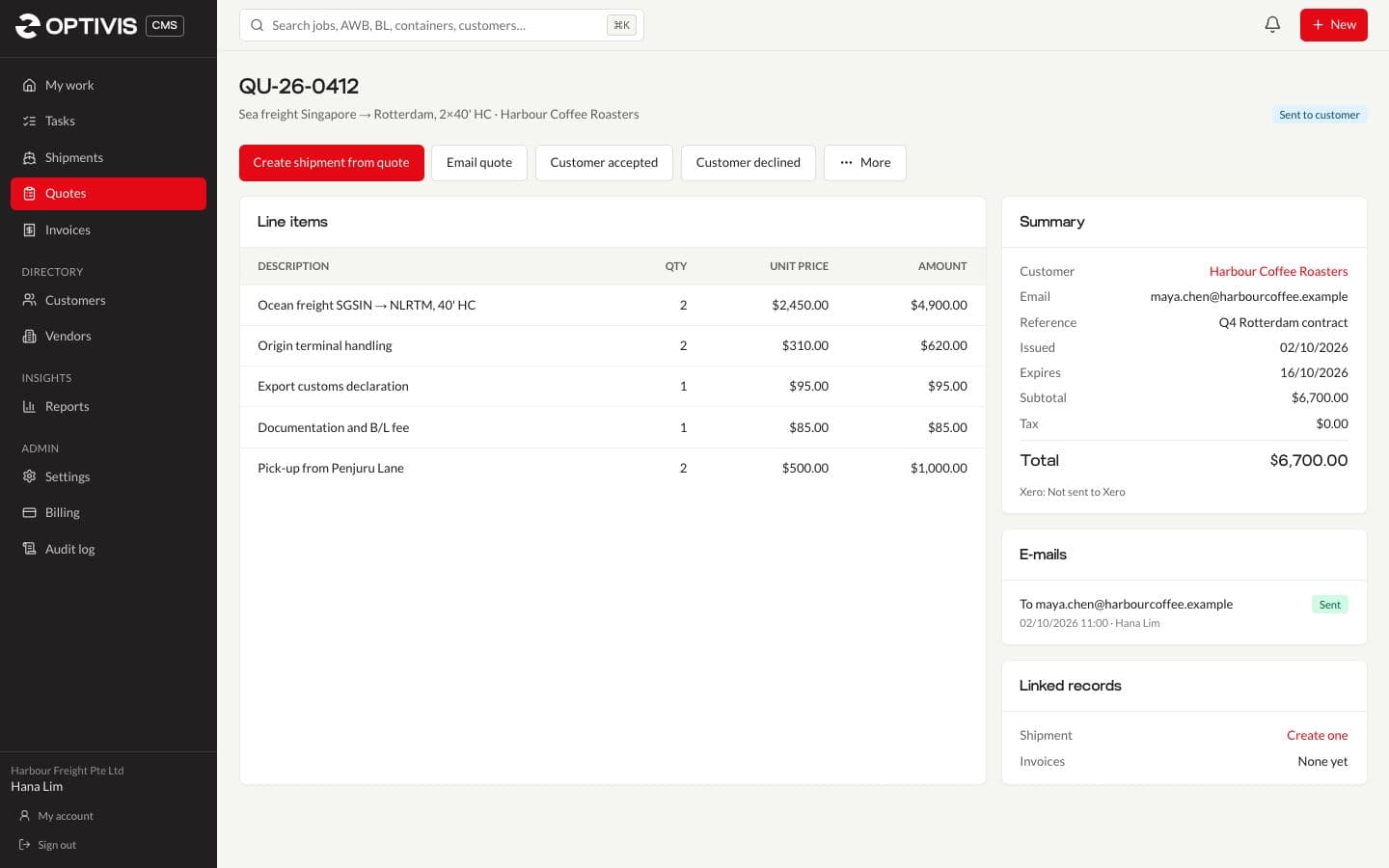
- Quotes and invoices can be in any currency you've added
Xero, connected to your own organisation
Each workspace connects its own Xero app with a client ID and secret, then sends invoices and quotes to Xero with their lines, account codes and tax types. Optivis CMS shows which documents have been sent. Without Xero, quotes and invoices work just the same.
02
Questions
- Does Optivis CMS replace our accounting software?
- No. It handles the job's charges, profit, quotes and customer invoices. It isn't a general ledger: connect Xero to send invoices and quotes to your accounts.
- Do payments come back from Xero?
- Not today. Record payments on the invoice in Optivis CMS; that's what closes the shipment.
- Where do exchange rates come from?
- You enter them in Settings, by date. There's no live rate feed, so the rates used for profit are the ones you've chosen.
- Can someone see invoices without seeing profit?
- Yes. Selling rates, costs, profit and invoices each have their own permissions in the roles editor.
See the profit on your next job before you invoice it
Add costs and selling charges in any currency and Optivis CMS works out the margin as you type.
Early access opens soon: a 14-day free trial of Pro, no card needed