
Optivis CMSFeaturesQuotes
Quote, send and win the job without leaving the system.
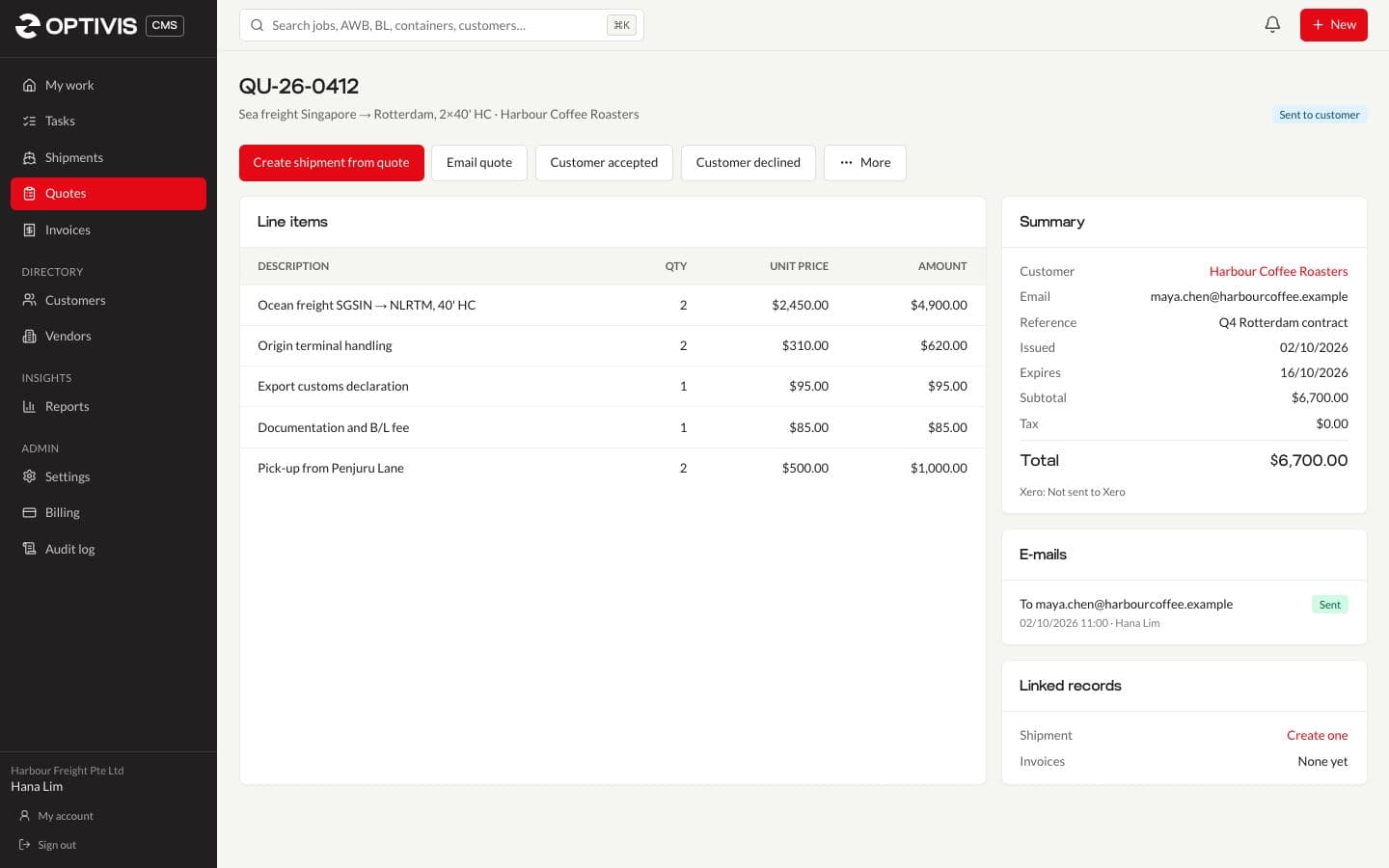
Optivis CMS is a cargo management system (CMS) for freight forwarders. Build a quote line by line in the customer's currency, e-mail it as a PDF from the app, and turn it into a priced shipment when the customer says yes.
Early access opens soon: a 14-day free trial of Pro, no card needed
01
Quotes in Optivis CMS
Line by line, in any currency
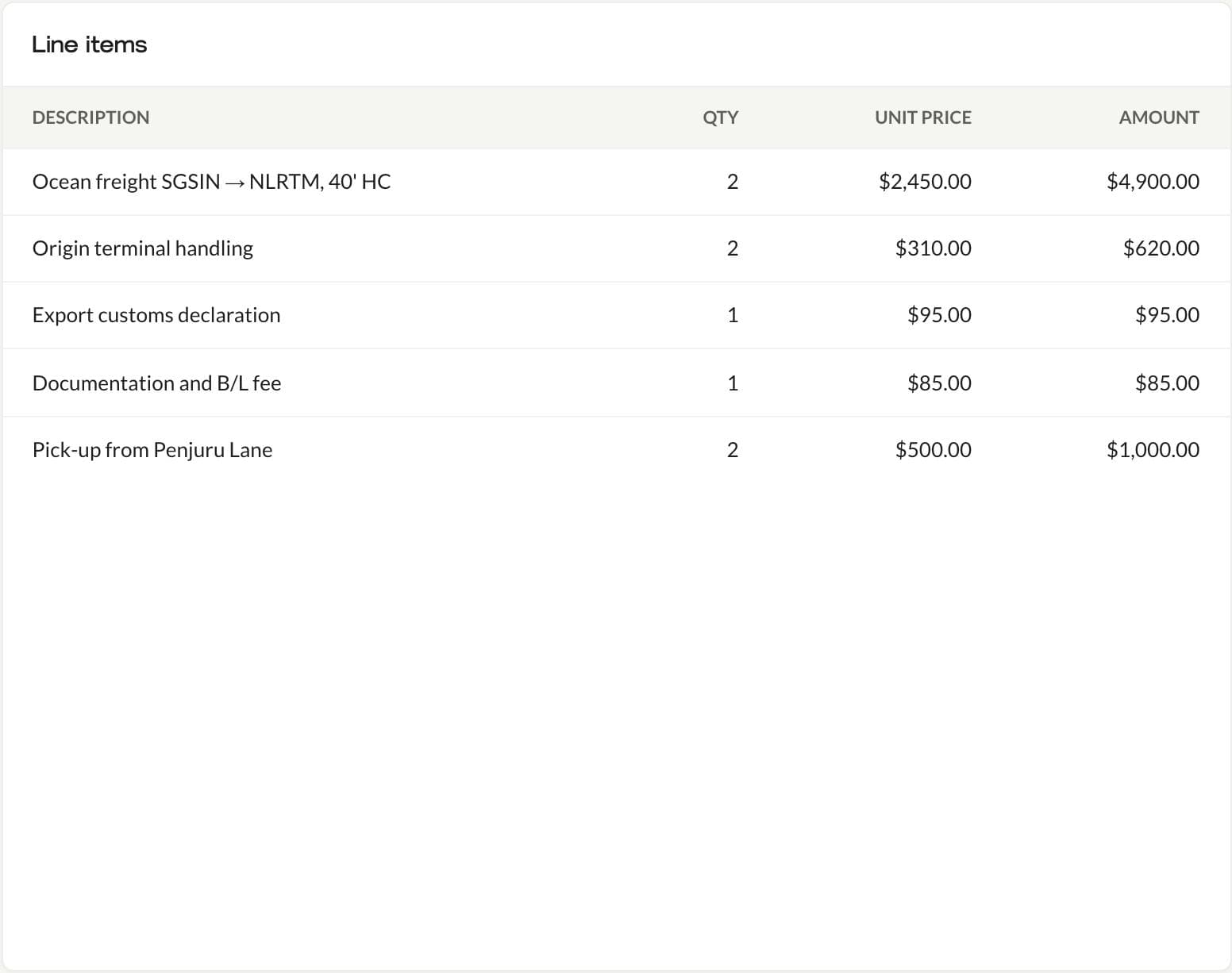
A quote is a list of lines, each with a description, quantity, unit price, discount, tax rate and account code, in whichever currency the customer pays in. Prices can be entered with or without tax, or with no tax at all.
- A title, summary, your reference and a validity date
- Terms and conditions from your own templates, kept with each quote as they were when it was sent
- Quote numbers follow your workspace's pattern, for example QU-2026-00042
E-mailed as a PDF, with every send kept
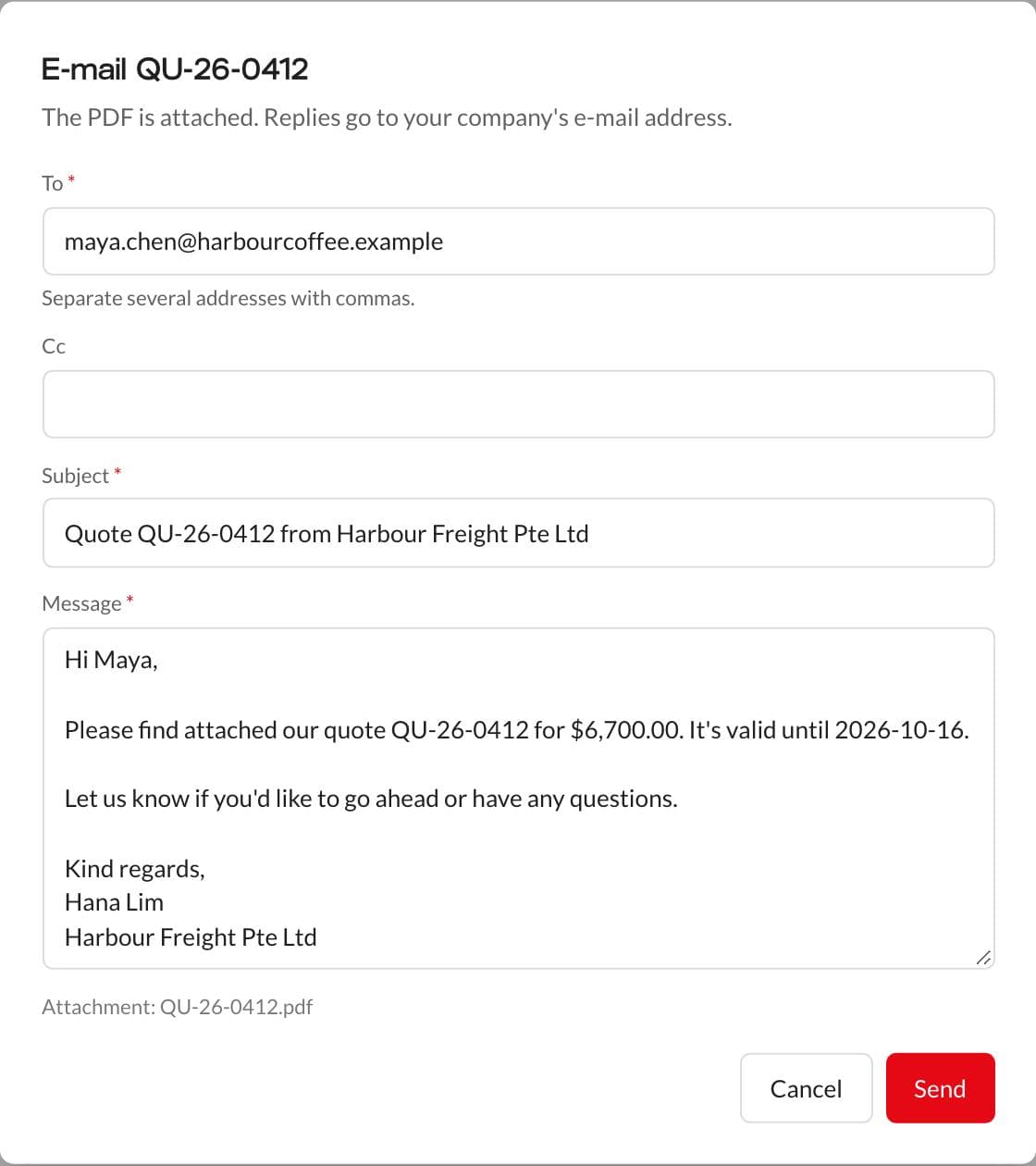
Email quote opens a message addressed to the customer's contact, with the subject and a short note already written and the quote attached as a PDF. Replies go to your company's own address, and every send, or failed attempt, is listed on the quote with who sent it and when.
- Sent through your own SMTP server if you add one, otherwise as "Your company via Optivis"
- E-mailing a draft quote marks it as sent
- Download the PDF at any time to send it another way
Accepted becomes a shipment, already priced
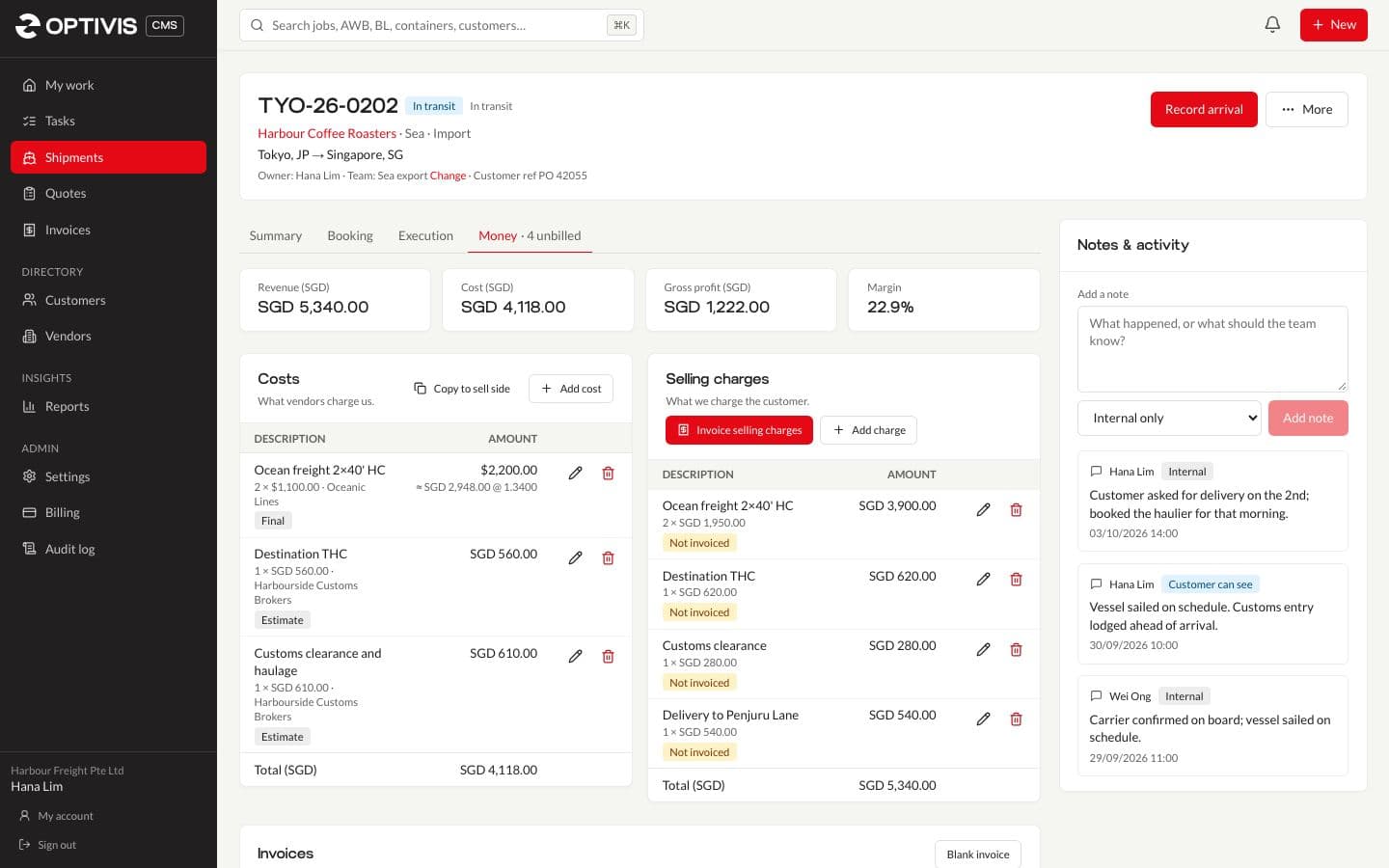
When the customer agrees, click Customer accepted, then Create shipment from quote. The shipment form opens with the customer filled in, and the quote's lines become the shipment's selling charges, so the price you agreed is the price you invoice.
- Prices entered with tax are converted to net charges, and discounts are applied to the rate
- The job's stage follows the quote: Quoted once it's sent, Booked once it's accepted
- Or invoice an accepted quote directly, without a shipment
Send it to Xero when you want to
If you've connected Xero, Send to Xero creates the quote in your Xero organisation with its lines, account codes and tax types. Quotes work fully without Xero too.
02
Questions
- Can I quote in a currency other than our own?
- Yes. Each quote has its own currency. When it becomes a shipment, its selling charges keep that currency and are converted to your base currency for profit, at the exchange rate you've set.
- Does Optivis CMS have rate cards or tariffs?
- Not today. Your team prices each quote line by line. Charge categories and terms templates are shared across the workspace, and an accepted quote's prices carry through to the shipment and the invoice.
- What does the customer receive?
- An e-mail with the quote attached as a PDF: the quote number, lines, totals, validity date and your terms. Their reply comes to your company's address.
- Can I see whether and when a quote was sent?
- Yes. Every e-mail sent from a quote, or attempt that failed, is listed on it with the recipients, the person who sent it and the time.
Send your next quote from Optivis CMS
Add a customer, build the quote line by line and e-mail it as a PDF in a few minutes.
Early access opens soon: a 14-day free trial of Pro, no card needed